

Want to turn your own study material into smart, personalised exams? With PrepareBuddy’s Custom Content Module, you’re in full control. Whether you're reviewing class notes, preparing for a certification, or helping students practice, this powerful feature lets you generate targeted exams from your own content in just minutes.
In this guide, we'll walk you through every step—from uploading material to receiving instant results—so you can study smarter and track your progress like a pro.
Read - User Guide: Creating Custom Exams with AI-Powered Modules
Step 1: Sign Up and Get Started
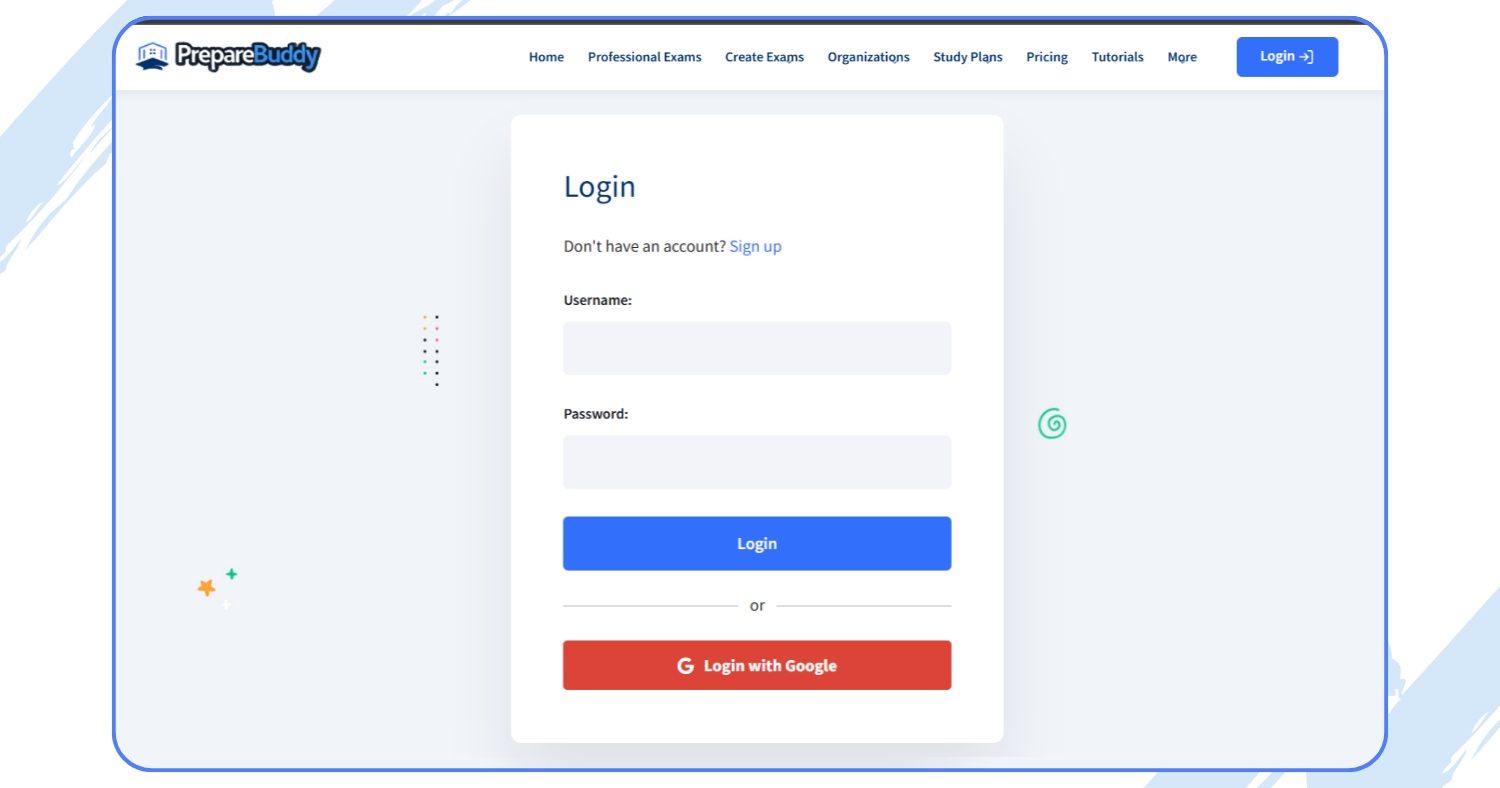
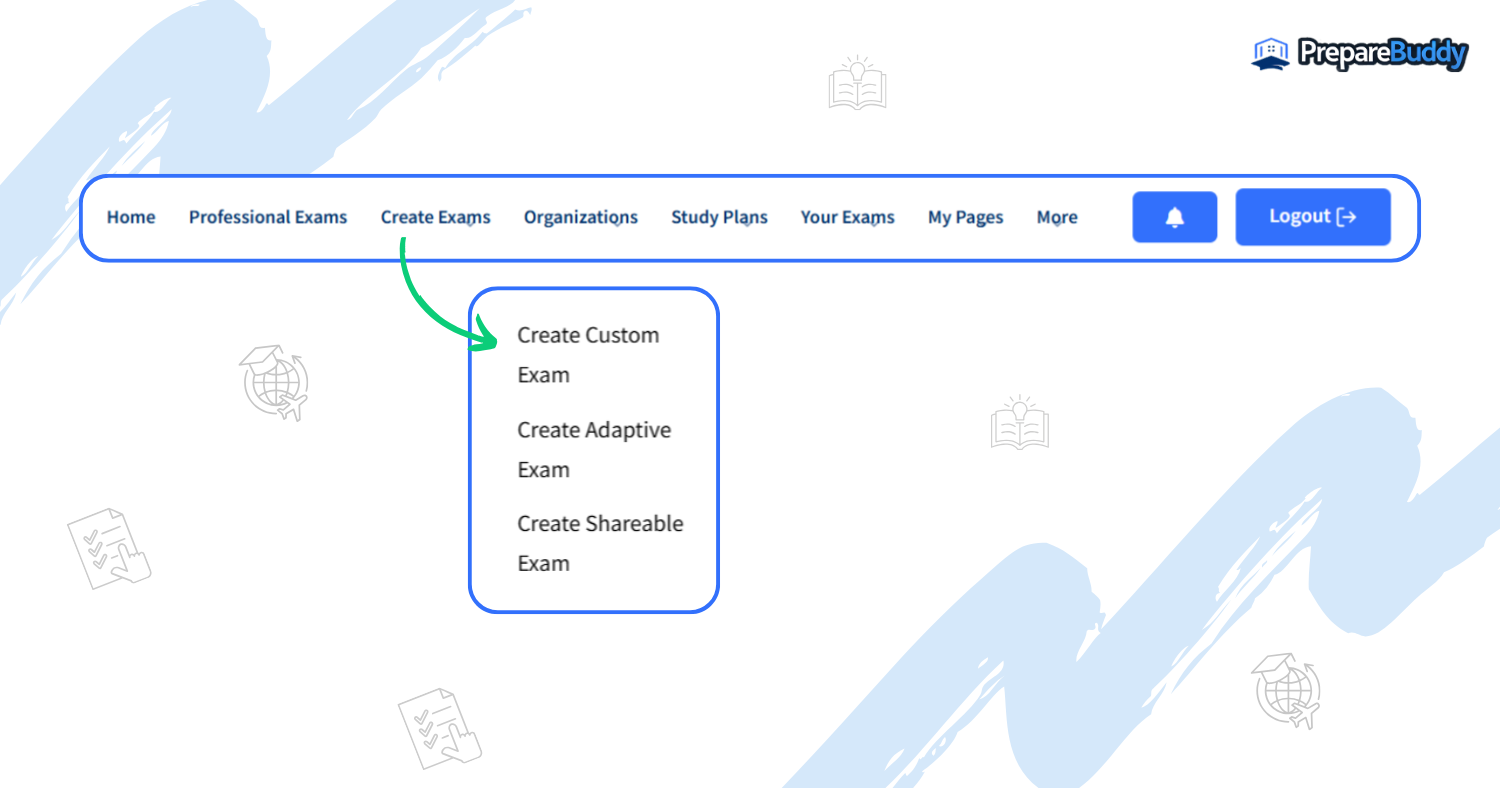
Before you dive into creating your own exam, you'll need to sign up or log in at PrepareBuddy. It's quick and easy—just a few clicks and you're in. Once you're logged in, head straight to the Create Exam section. This is where the real action begins.
Step 2: Choose Custom Exam Setup
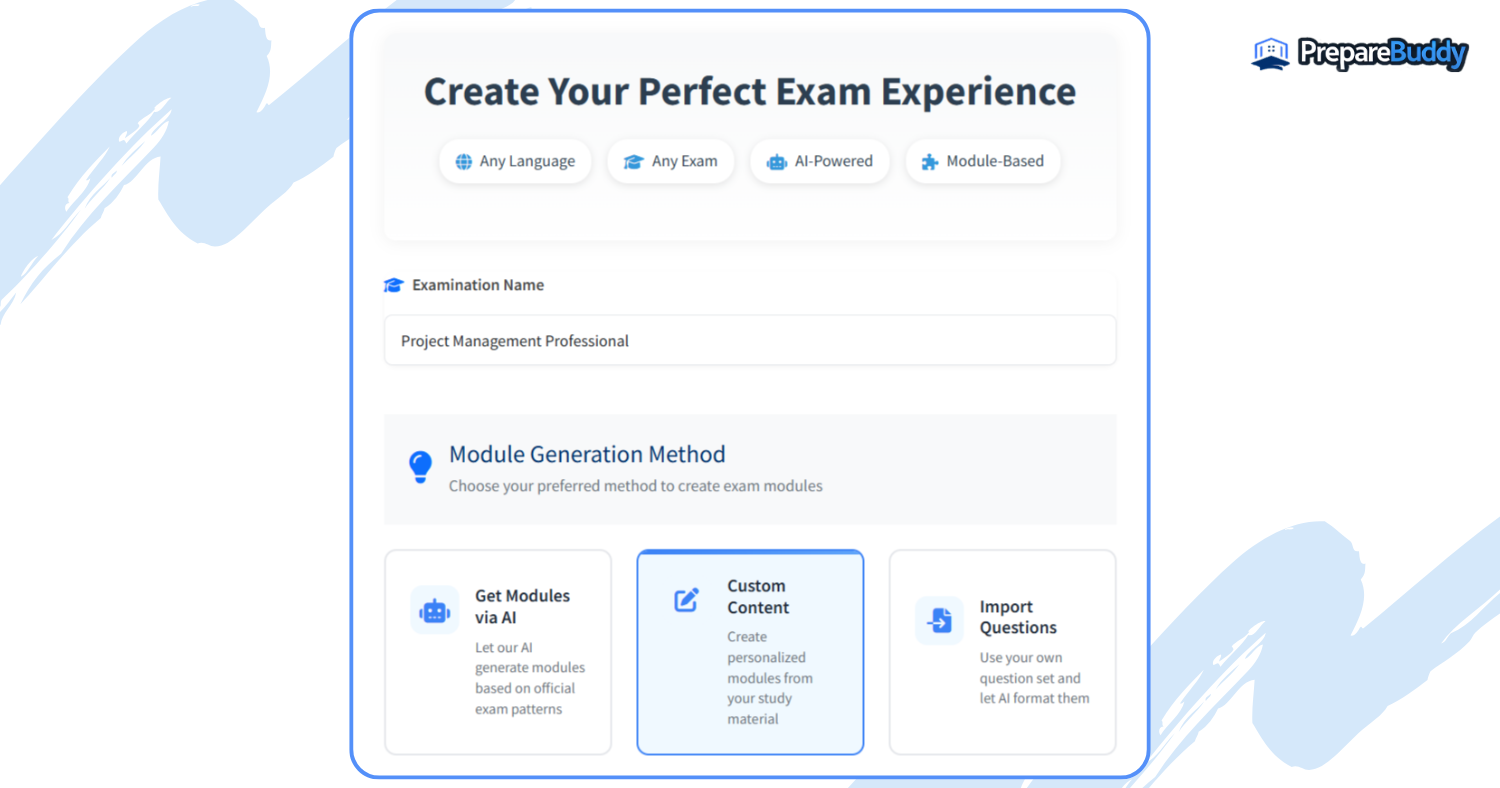
Give your exam a name—something that helps you instantly recognize it later. Think "Physics Chapter 5 Revision" or "Marketing Certification Drill." After naming your exam, scroll down to the Module Generation Method and select Custom Content. This is your DIY toolkit—designed for total flexibility and control.
Step 3: Add Your Own Content (Up to 3200 Words)
This part is powerful. You get to copy and paste your own study material directly into the platform. Whether it’s your classroom notes, highlighted textbook sections, or even bullet points from a YouTube lecture, it all goes in here. You can add up to 3200 words, so don’t hold back.
Be specific. Mention key topics, learning objectives, and concepts you want the AI to focus on. For example: “Explain supply chain bottlenecks,” or “Focus on cell biology and mitosis.” The more tailored your content, the more relevant the questions will be.
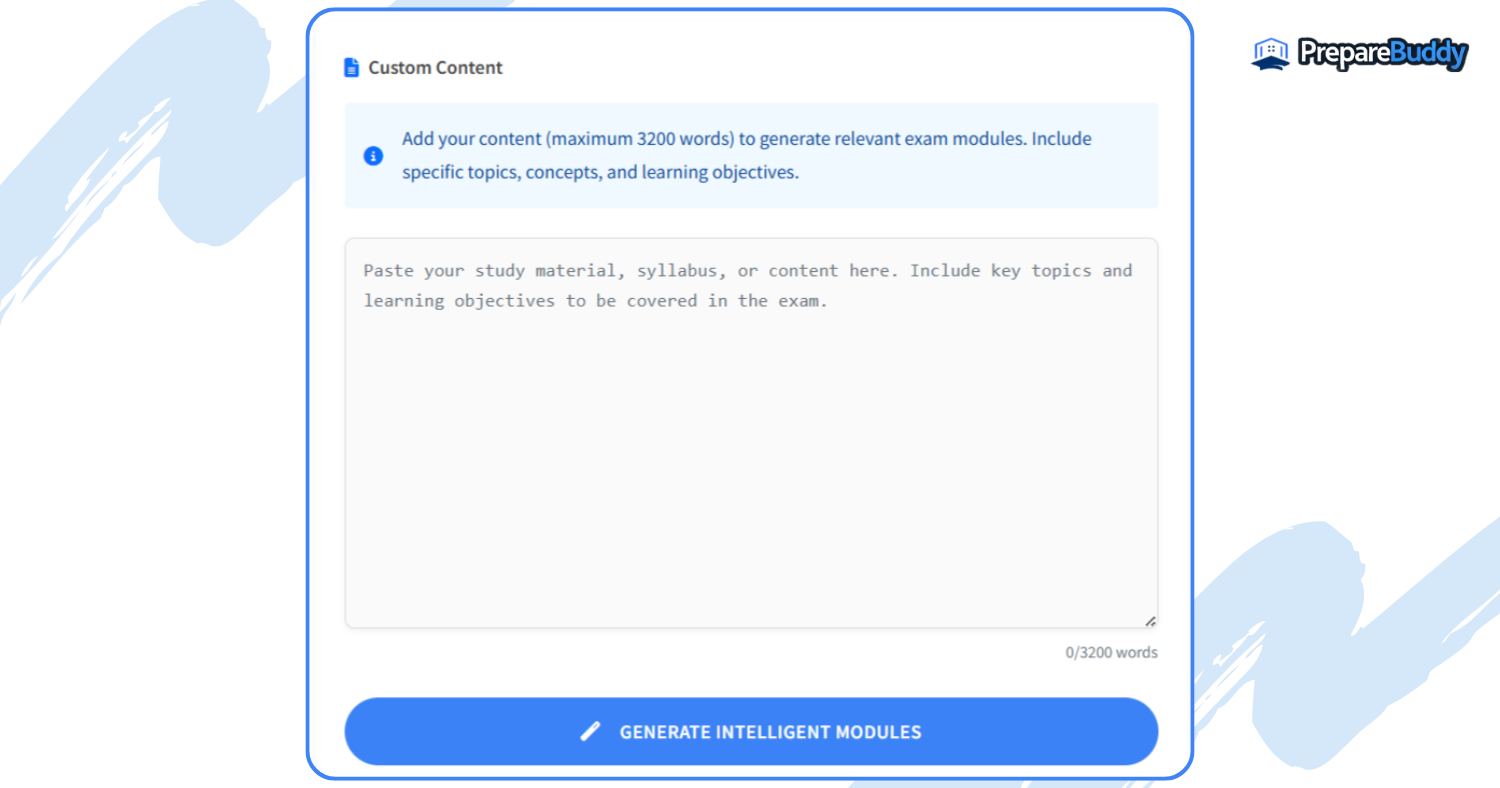
Step 4: Generate Intelligent Exam Modules
Click Generate Modules and let the system analyze your input. The AI reads everything and breaks it down into digestible, focused exam modules. You’ll see a list of modules that match the content you entered—organized and ready for selection. It’s like having a smart assistant that knows how to test you best.
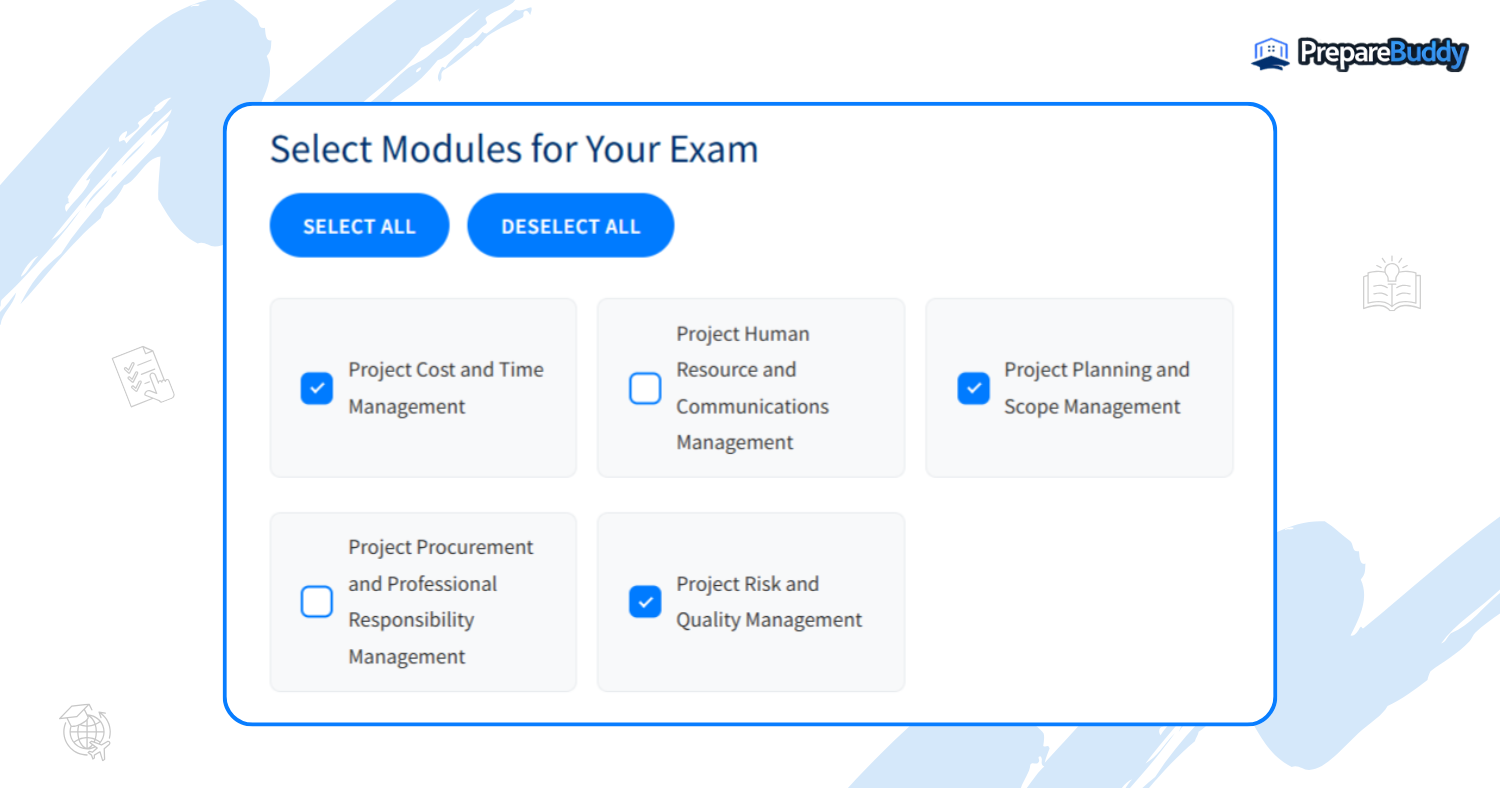
Step 5: Pick and Personalize Your Exam
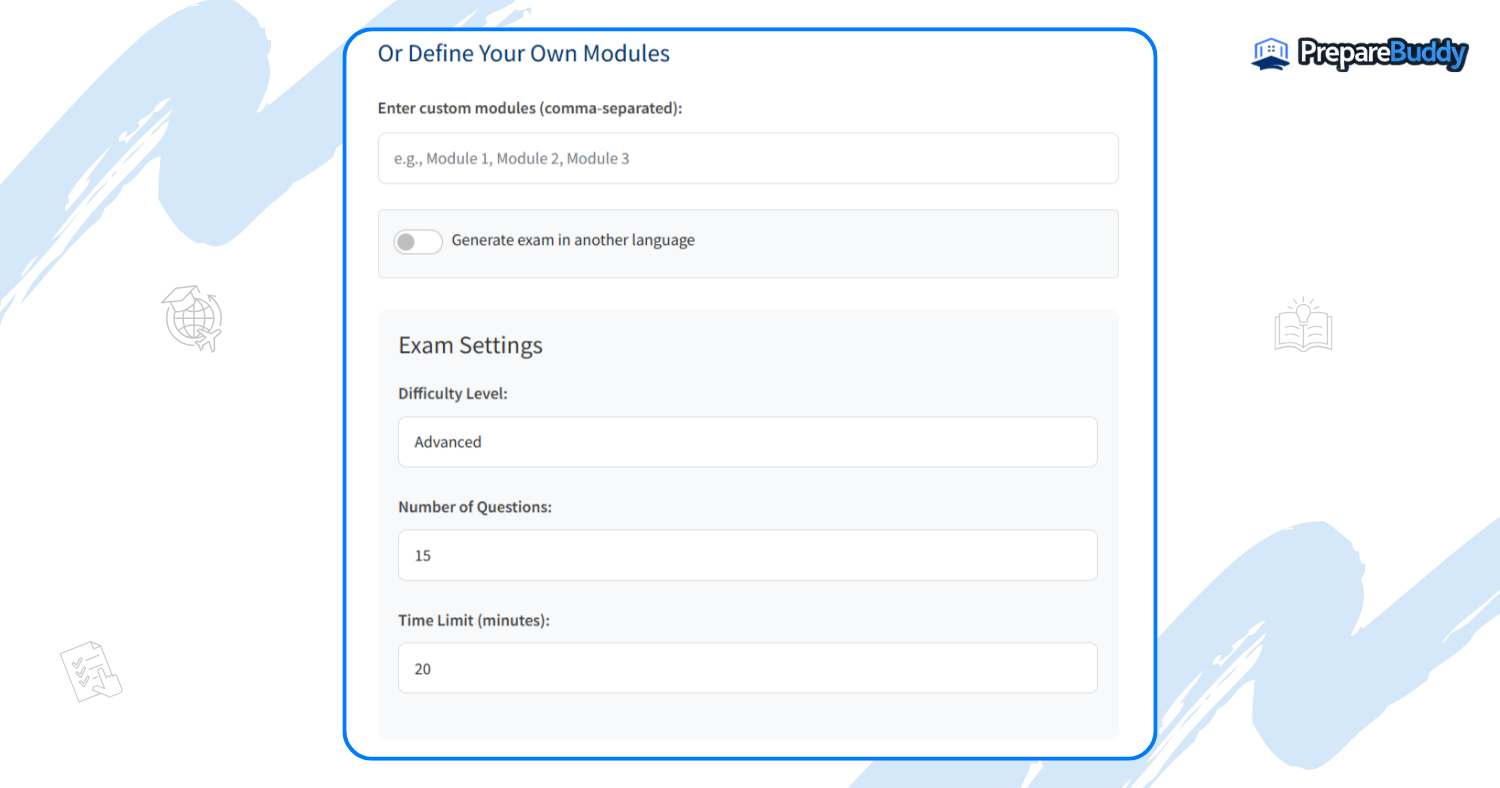
Now comes the fun part. Select the modules you want to include in your exam. You can even change the language—perfect if you're studying in a bilingual setup or trying to prep for an exam in a second language.
Then, set your preferences:
- Difficulty level – Easy, medium, or hard?
- Number of questions – 10? 20? You decide.
- Time limit – Set it to match real exam pressure or go relaxed mode.
This flexibility lets you simulate the real test environment or keep things light while learning.
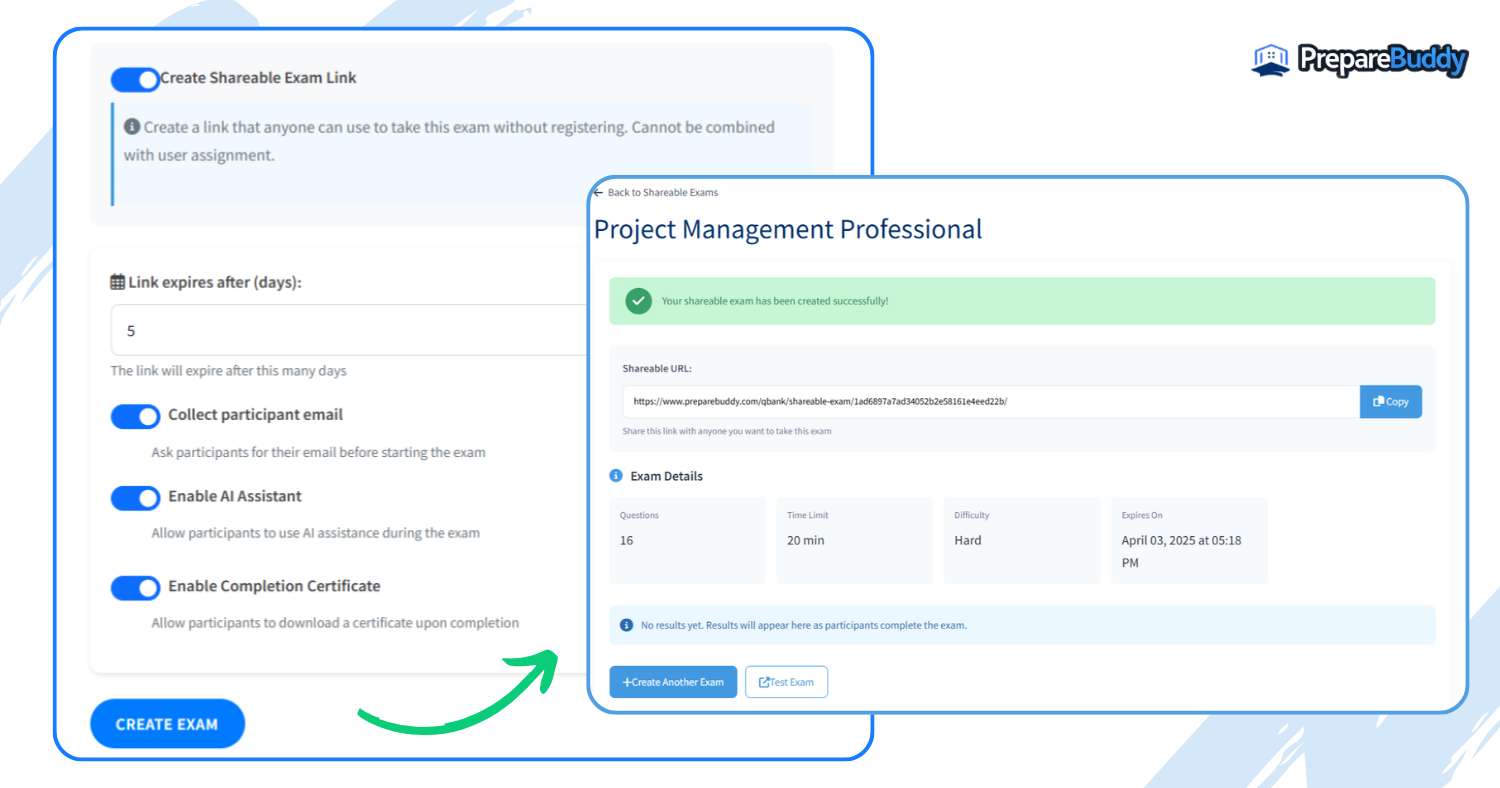
Step 6: Create a Shareable Exam Link (Optional)
Want to challenge your friends? Or maybe you’re a teacher assigning practice to students. You can create a shareable exam link that anyone can use—even without signing up. Just a heads-up: you can’t use this if you’re assigning to specific users. It’s best for quick collaboration or group prep.
Step 7: Start the Exam
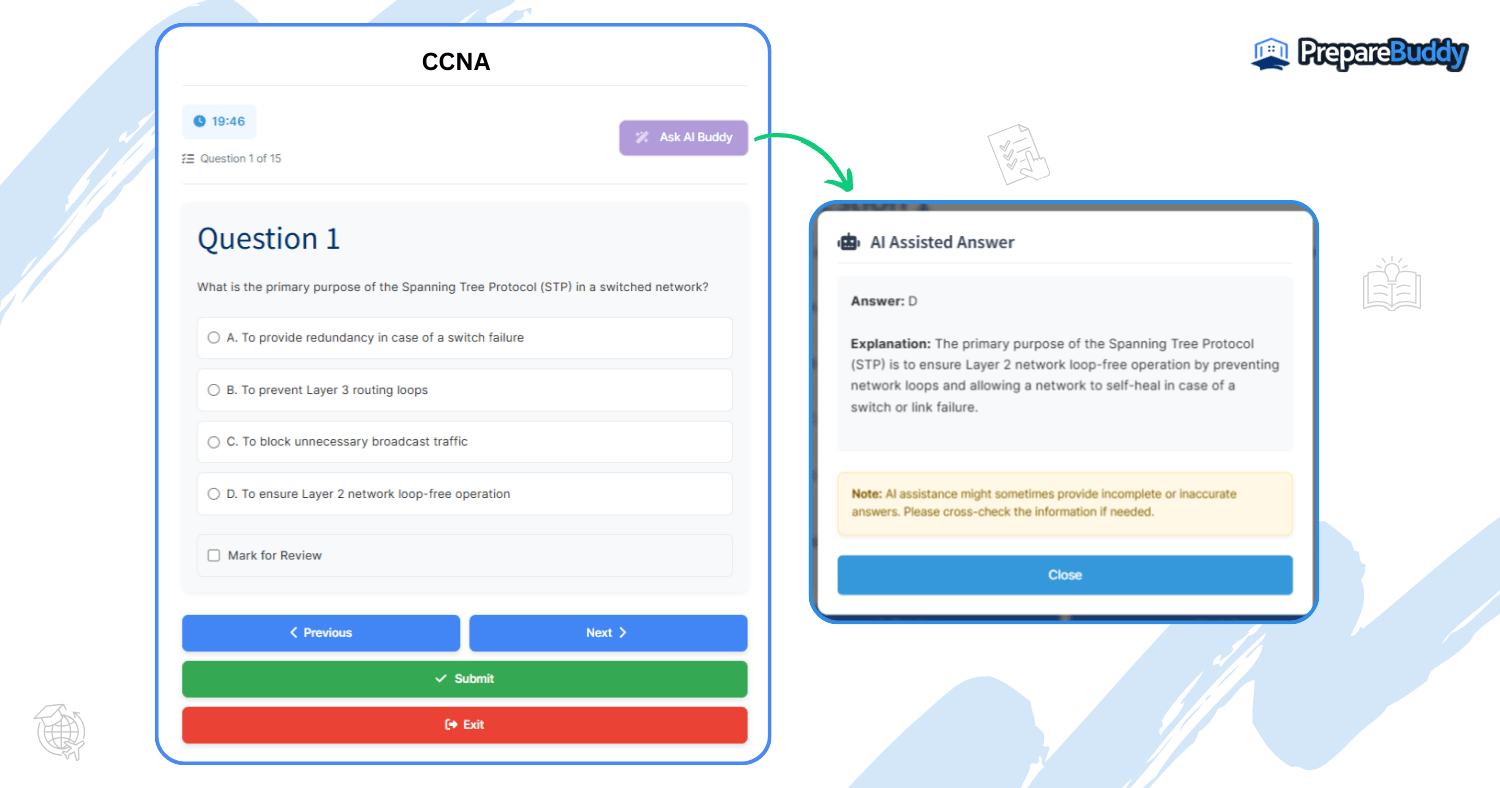
Ready to test yourself? Hit Start Exam and dive in. And if you hit a wall, don’t panic—the AI Buddy is chilling in the bottom-right corner. You can ask it for help, explanations, or a nudge in the right direction. Think of it as your on-demand study buddy.
Step 8: See Instant Results
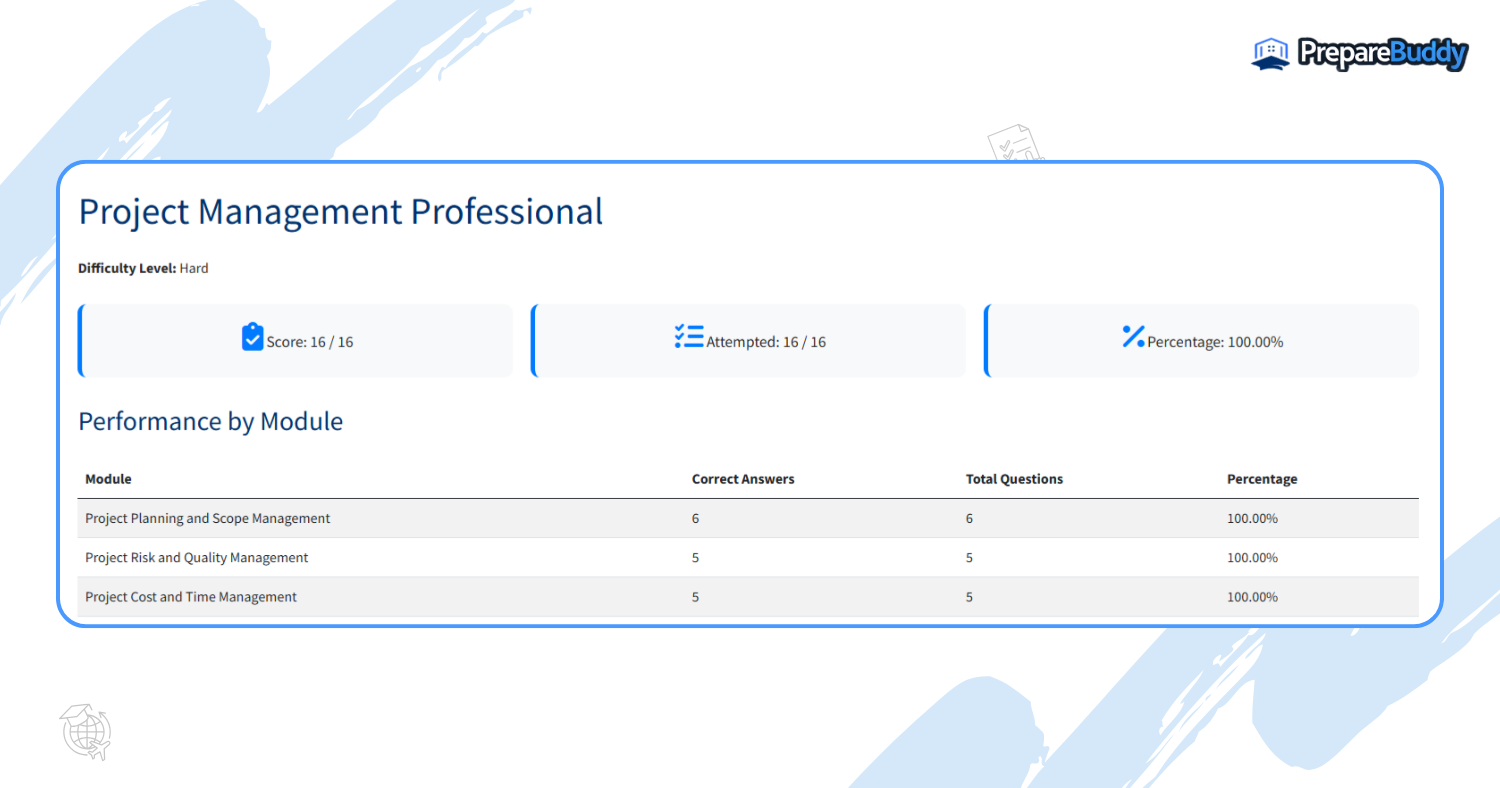
Once you finish, your results are served hot—right away. You’ll get:
- A detailed score breakdown
- Areas of strength and weakness
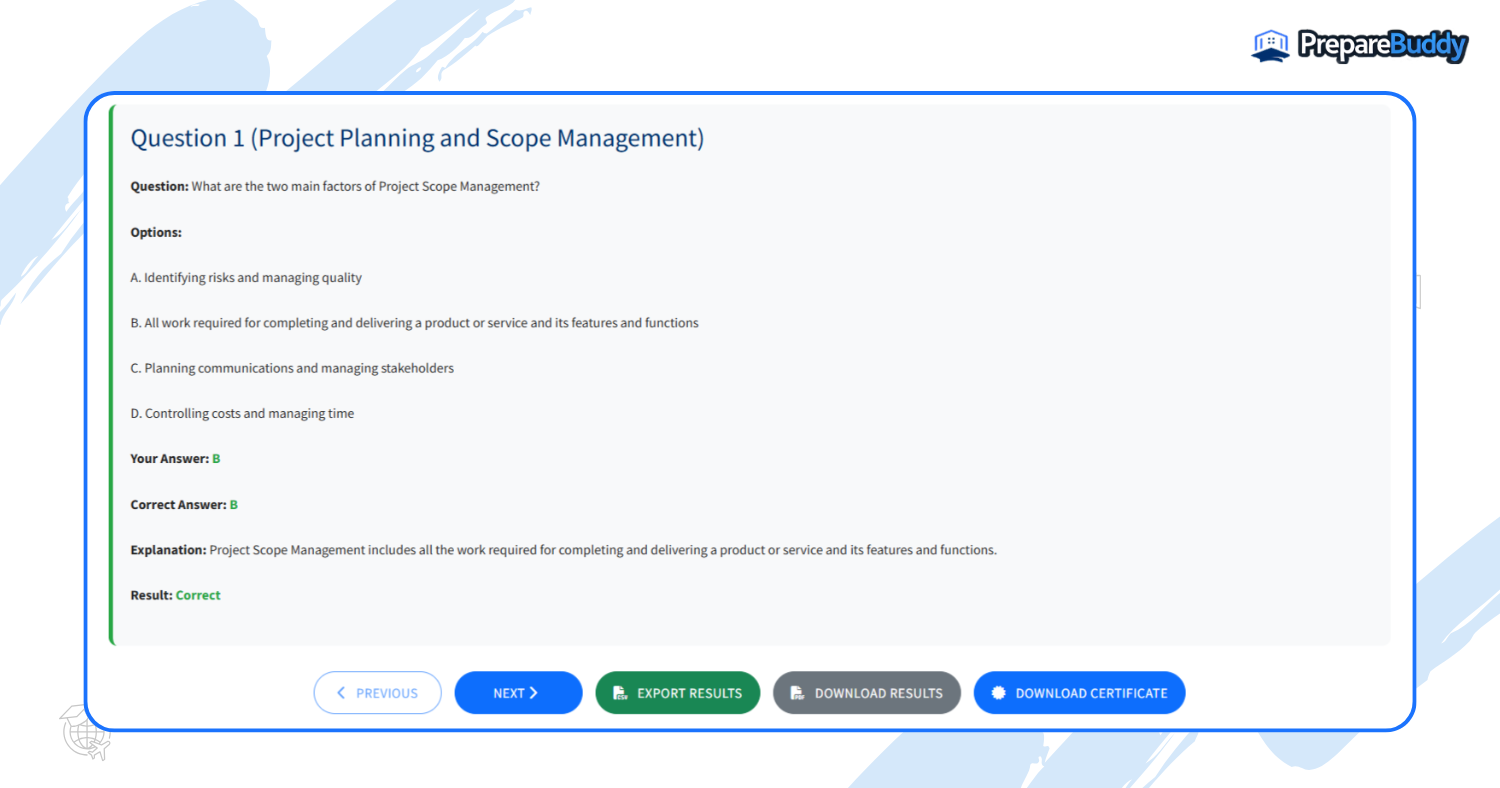
- Option to download your result
- Instant certificate of completion
Perfect for tracking progress or showing off your success.
Final Thoughts
Custom Content Exams on PrepareBuddy aren’t just about creating tests. They’re about learning smarter, faster, and your way. Whether you’re a student prepping for finals or a professional chasing certifications, this feature bends to fit your needs—not the other way around.
Give it a spin today and see how much more confident you feel going into your next test.
Need help or want to learn more tricks? Check out the Help Center or message us directly through the chat.

Join the Discussion